| All in (Mln $) | |||
|---|---|---|---|
| Cash in Hand: Mln $ | |||
| Train # | Revenue | Expenses | Profit |
Click on the Start Button to begin the game. The game will run for time units. Each time unit is shown at the center of the screen and will take about minutes of playing time. The time for which the entire game is paused is not counted.
Your objective to earn as much profit as possible by running up to a total of 9 trains. You start with a cash in hand of million dollars and two passenger trains and one freight train already in operation.
The game is controlled by either using your keyboard or the on-screen control panelshown below

When later in this document we say that a certain key is to be pressed, you can click on the same key in this on-screen control panel as an alternative to using the keyboard.
Pausing the entire game (when the game play is completely frozen, even the time is frozen!) is important as you can make strategic decisions without the pressure of ongoing events. You can pause the entire game at any time by pressing the P key on the keyboard. P also starts the game if it is paused. When the game is paused, you will still be able to add trains, extend trains, upgrade engines, add stations and flyovers etc.
The T key displays the trains dialog box. It also allows you to make modifications to existing trains and start a new Train. Pressing the T key again removes the Train dialog box. The passenger trains can have a maximum of coaches and the freight trains can have a maximum of freight wagons. Each passenger coach costs and each freight wagon costs . You can change the number of coaches or freight wagons by entering the new number in the input field. You can also stop or pause any train by using the pause button in the train dialog box or by pressing the corresponding number key for each train (1 for Train #1, 2 for Train #2 and so on on your keyboard). There is an option to delete a train completely but if you do that, you will lose all the money you invested in that train and you will not be able to get it back. When a new train is started, it comes with a standard engine which costs . However, you can upgrade the engine of freight trains later in the game to increase the speed of the freight trains by clicking on the upgrade button in the train dialog box. Each engine upgrade costs . There is also an option to extend the train route by clicking on the extend button in the train dialog box. This extension can be done from either end of the train track. After clicking on the extend button, you will need to click on the map to specify the additional route for the train. Once the additional route is specified, you can either confirm the extension by clicking on the check button in the train dialog box or cancel the extension by clicking on the times button in the train dialog box. Below the train level controls, there is a button to start the track specification for a new train. After clicking on that button, you will need to click on the map to specify the route for the new train and then click on the flag off button in the train dialog box to start the new train. You can also cancel the track specification for the new train by clicking on the cancel button in the train dialog box. You will need to specify the type of the train (passenger or freight), the number of coaches or freight wagons and the speed of the train before flagging off the new train.
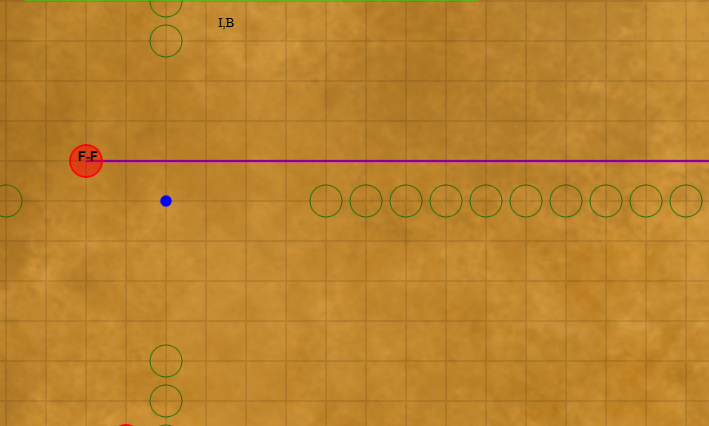
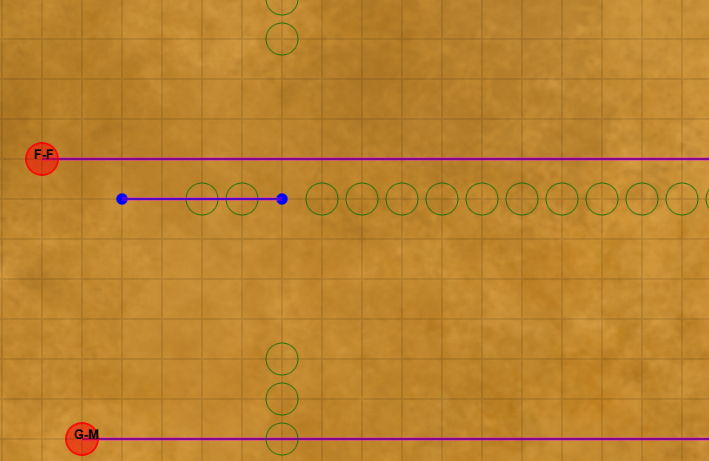
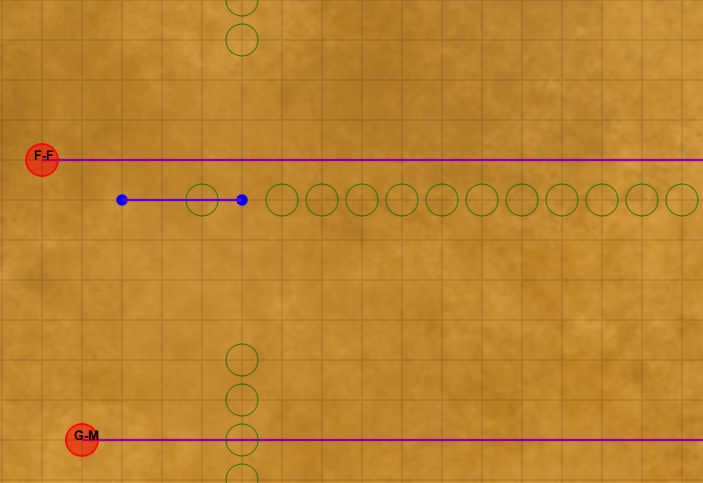
Designing a new train route requires careful planning to ensure that your train operates profitably and takes as small a route that covers the necessary stations. Remember that each train is charged a maintenance cost for the tracks and it is obviously directly based on the length of the route. Each station also incurs a maintenance cost. Adding stations where you are not picking up or dropping off passengers/freight not only incurs the maintenance cost but also slows down the train. Also keep in mind that trains cannot make sharp turns. The green circles on the screen will guide you to make valid moves for the train route.
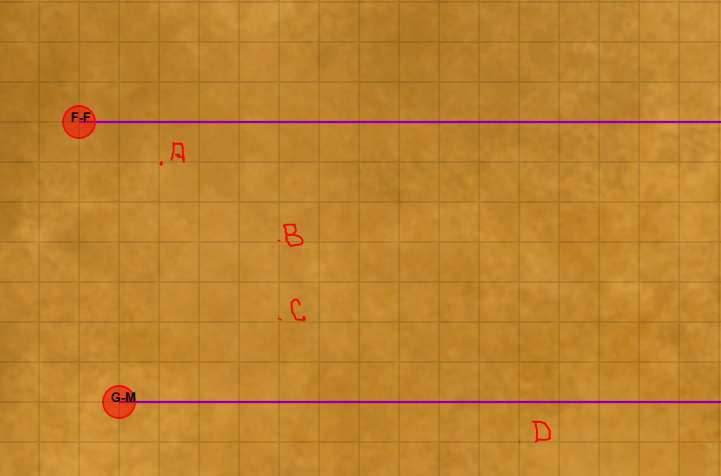
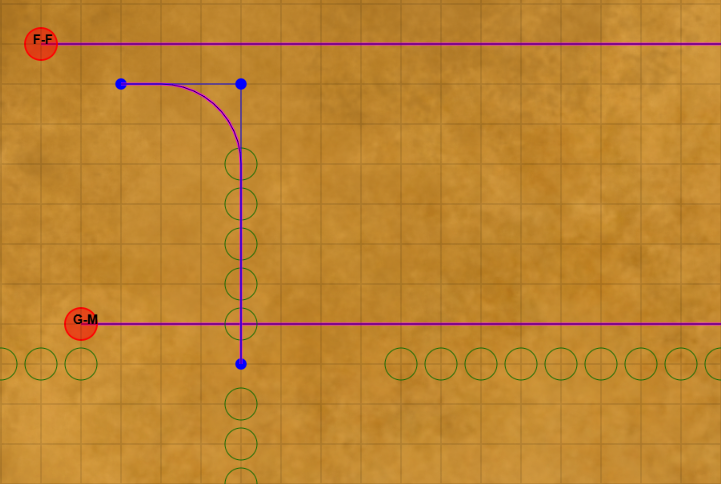
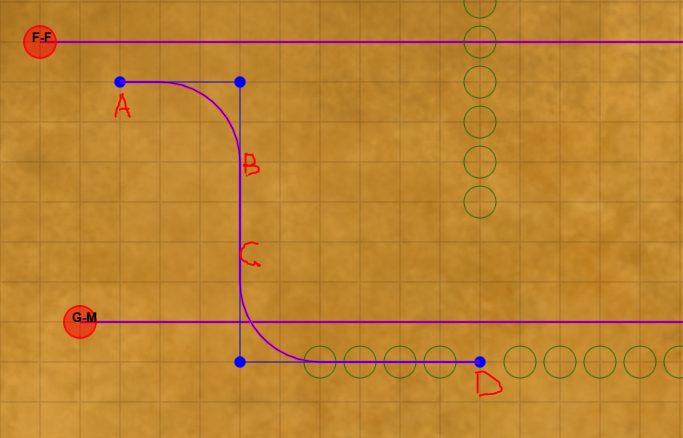
You will obviously start from a location where there are passengers or freight to pick up. Let us say that you want to start at point A on the map and you want to create stations at points B and C and terminate your train at D. As shown below:
Similarly S brings up the Stations dialog box to add more stations to any train's route. Each station costs . However, adding a station allows you to earn more revenue from passengers or freight that is dropped off or picked up from that station. The same screen allows you to delete an existing station. While, deleting a station does not recover any of the cost incurred on building the station, ongoing station maintenance cost will be saved.
Similarly F brings up the Flyover dialog box to add a flyover at any point where two or more trains cross each other and where they are likely to collide. Note that flyovers are expensive each costs . Hence if you do not want to add them, you can manually stop one train to avoid the collision as described above. Each collision costs .
Before starting a new train, you may want to know where the cities and passengers are. You can see this information by clicking on the X key.
The raw material availablility is shown on the map if you click on the Y key.
The raw material demand is shown on the map if you click on the Z key.
It is assumed that passengers are moving to and from the cities and hence the passenger demand is higher between cities with higher populations. If the train stops at a station it can pick up passengers or freight and some neighboring passengers or freight may also be available to pick up. The more stations a train stops at, the more passengers or freight it can pick up and drop off and hence the more revenue it can earn. However, stopping at more stations takes time and also increases the cost since facilities need to be provided at each station. Hence you need to find the right balance to maximize your profit.
Pressing the R key brings up the Results dialog box which displays the revenue, expenses and overall profit.
Please note that you can add trains only if you have enough funds.
If you press the ? key, the game will display the 'How to play' dialog box.
Keep in mind the following obvious information:
- Passenger trains earn you money based on the number of passengers they carry. Each passenger coach you add costs money. You pay for the maintenance cost of the track and stations at the end of each period. Each coach has a capacity of passengers. Freight wagons have a capacity of units.
- Adding a flyover costs you but it allows you to avoid collisions which can cause significant damage to your trains and hence significant loss of money because the two trains involved in the collision are out of commission for a certain period of time. In addition to this, you have to compensate for the loss of life and property.
- Adding a station is expensive but it allows you to earn more revenue from passengers or freight (if there are any passengers/freight available there). Also if there is a station at the intersection of two or more trains, they can cross each other without the need for a flyover as long as one of the trains has a station at the intersection.
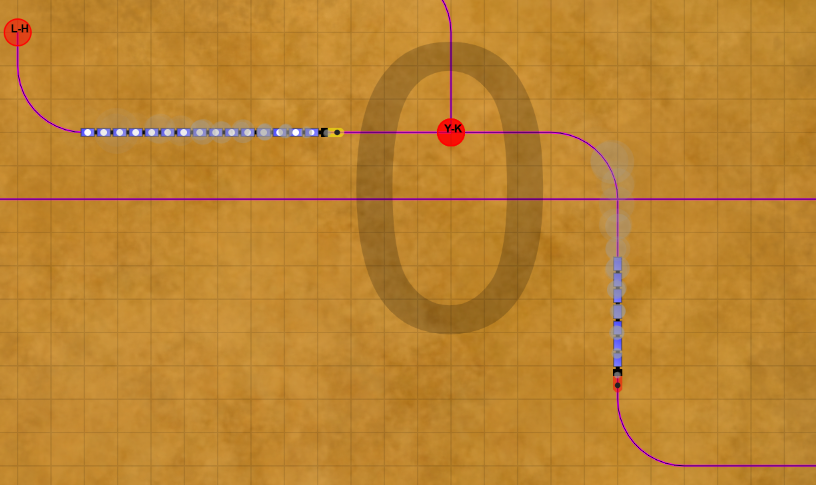
- Sometimes, you may see that some coaches/freight wagons have a white circle on them.
This indicates that the coach or freight wagon is currently not carrying any passengers/freight.
In the image below one train is not carrying any passengers as indicated by the white circle on its coaches.
- Note that collisions between trains take place only at grid intersections. If two trains cross each other at a point that does not fall exactly on the grid intersection, a collision will not occur.
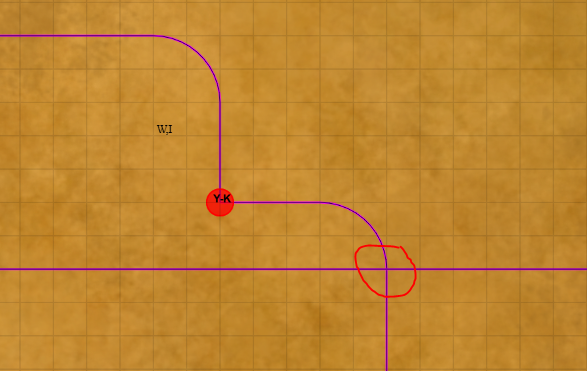
- When you start the game, there is one grid point where there could be collisions. Hence you
must place a stations at the intersection or manage the collisions manually by stopping one train while the
other train is occupying the intersection. See below:
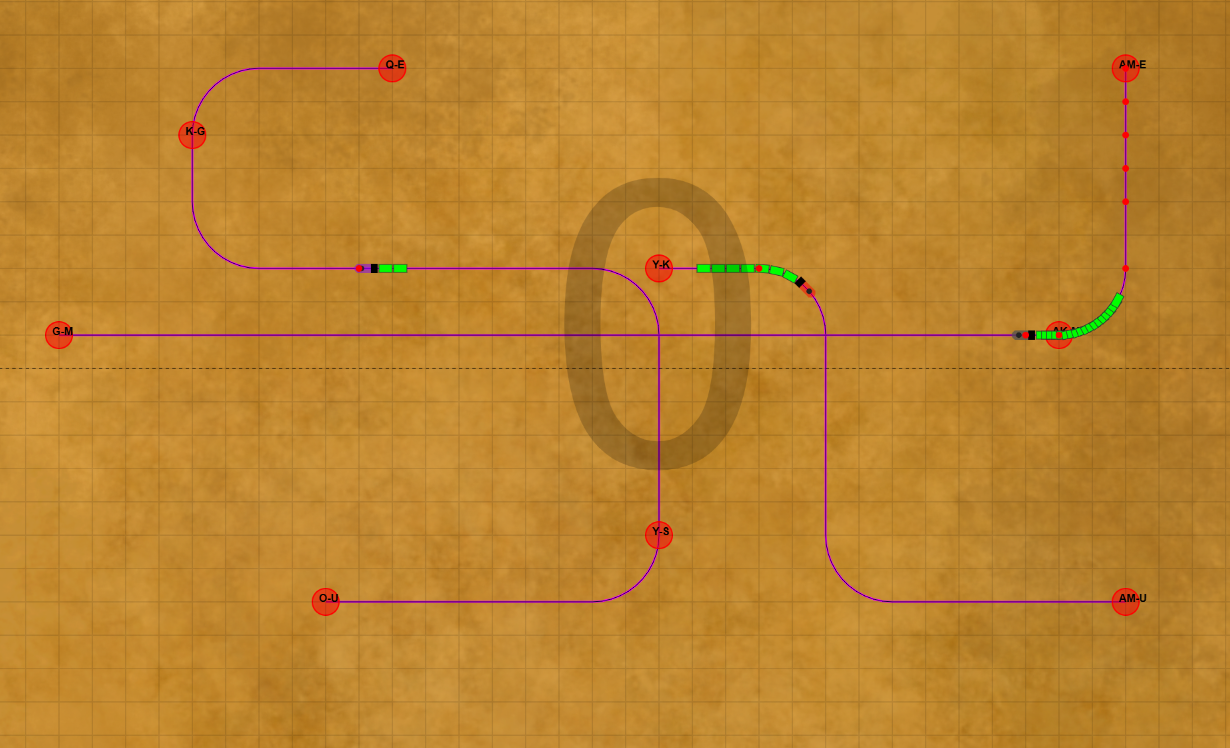
- Note that the big zero that you see in grey
in the middle of the screen is the time period. It will
keep increasing till 99. When it reaches 100 the game
will end.
- A train whistle can be heard at the beginning of each period. The clinking sound is played when money is incremented in the game. Also, there is loud crash sound if there is a train collision. All sounds can be switched off, if you wish by pressing the A key.
- Finally if you are not clear about adding a train and stations, you can press D key to view a simple demo. Make sure to turn on the sound to hear the commentary. All keyboard and mouse actions are suspended during the demo.